Give the team a shared reference
Spend less time giving directions
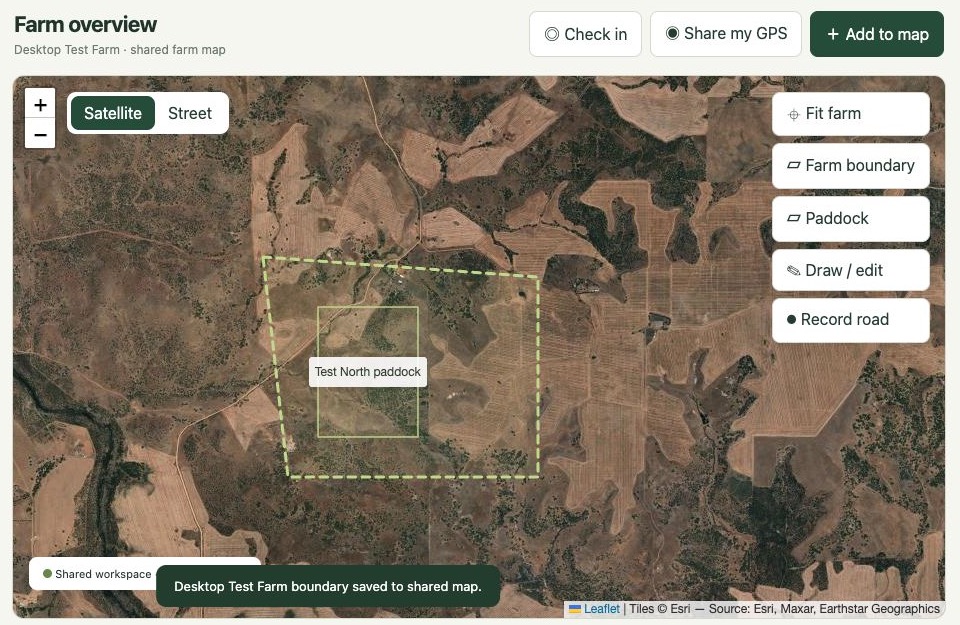
Name paddocks and mark places such as gates, sheds and water points. When you send a worker to check a trough, you can refer to the same place on the map.
Get new workers oriented
Invite workers to the farm map so they can see paddock boundaries, tracks and marked hazards on their phones. Use the map alongside your usual induction.
Keep the map current
Update the shared map when a field bin moves or an access point changes. Workers can check the current location before they head out.
Invite a worker to the farm map
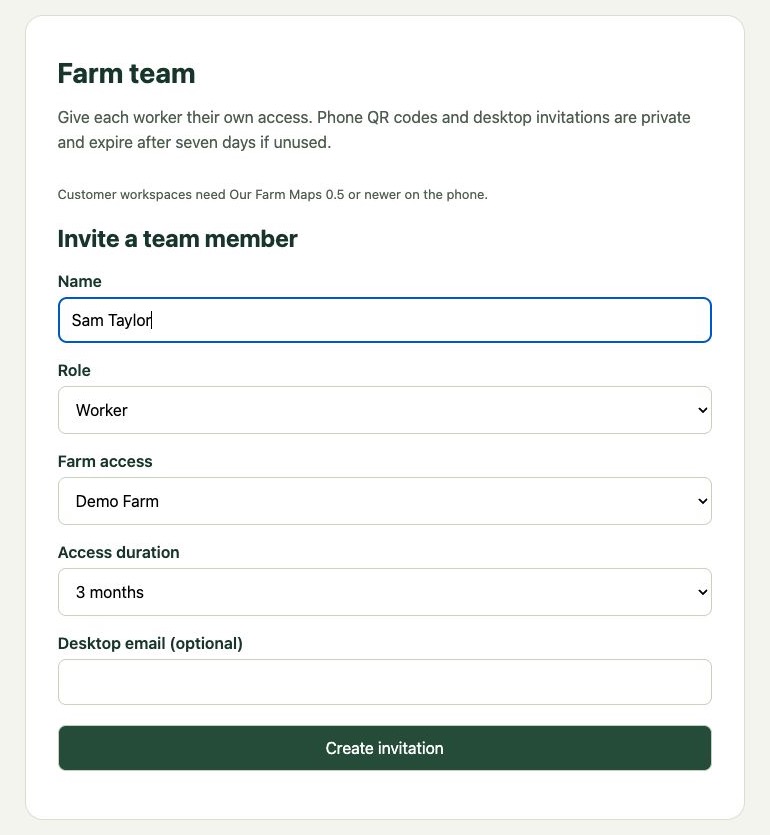
Open Team from the farm map. Enter the worker’s name, select Worker, and choose which farm they can access and for how long.
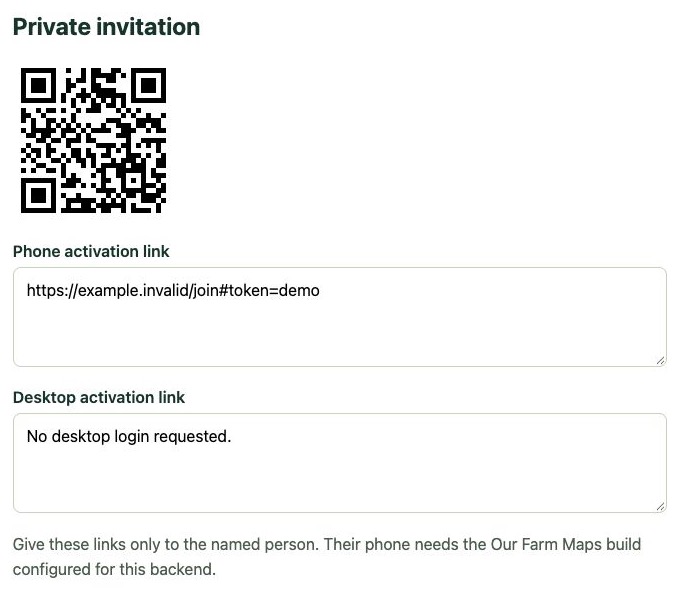
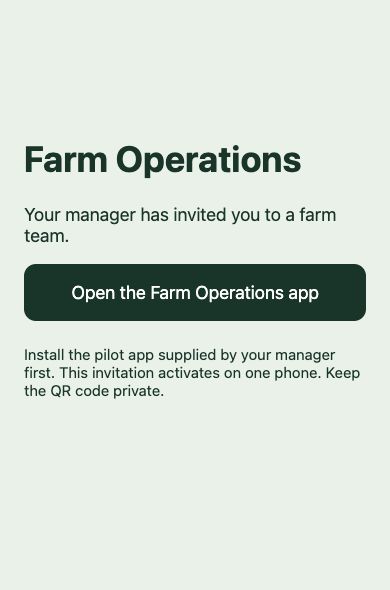
Select Create invitation, then share the phone QR code or activation link privately with that worker.
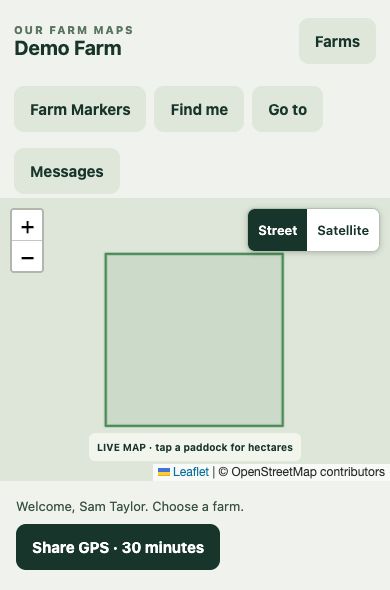
What the worker sees when joining
Phone previews with demo data. Tap either image to enlarge it.
Renew or revoke a worker’s access
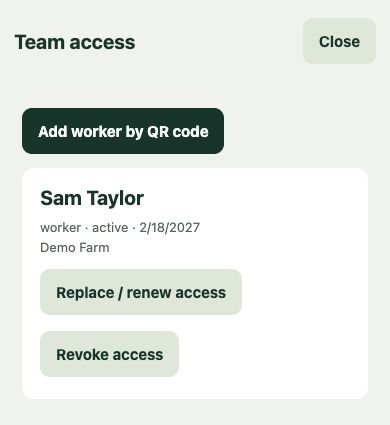
In the phone app, open Team and find the worker under Team access. Their entry shows their access status, expiry date and assigned farm.
Choose Replace / renew access to set a new access period and create a replacement invitation. Choose Revoke access and confirm when a worker no longer needs the map. Revoking also removes their shared GPS location.
From a job instruction to a destination
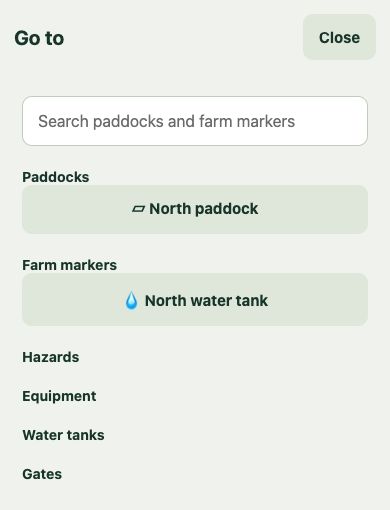
Say a worker needs to check the north water tank. Mark it on the farm map, give it a name, and use that name when assigning the job.
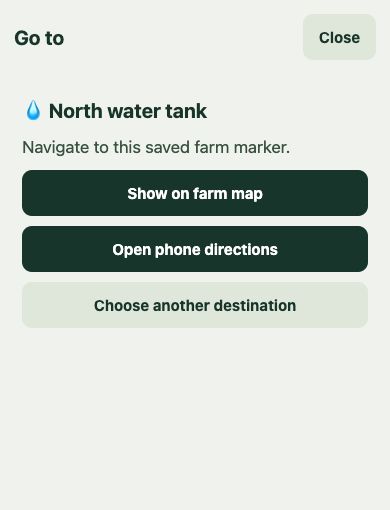
- Find the place. The worker opens Go to on their phone and searches for the destination by name.
- Check the map. They select the destination to see where it sits relative to paddocks and recorded farm tracks.
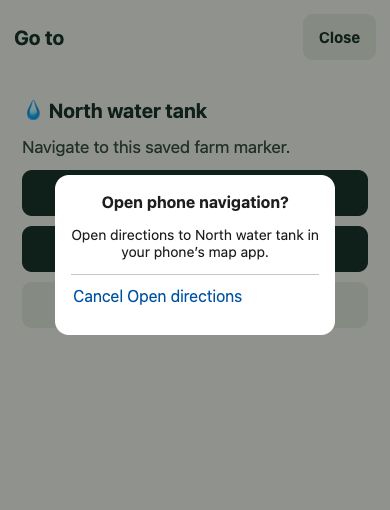
- Open directions. They can open the destination in their phone’s maps app, which chooses the route.
For a paddock, directions use a point inside its boundary. Mark the gate separately if workers need to arrive at a specific entrance, and tell them which farm track to use where needed.
What workers see on their phones
App previews with demo data. Tap any image to enlarge it.
Keep the team in touch in the field
App previews with demo data. Tap any image to enlarge it.
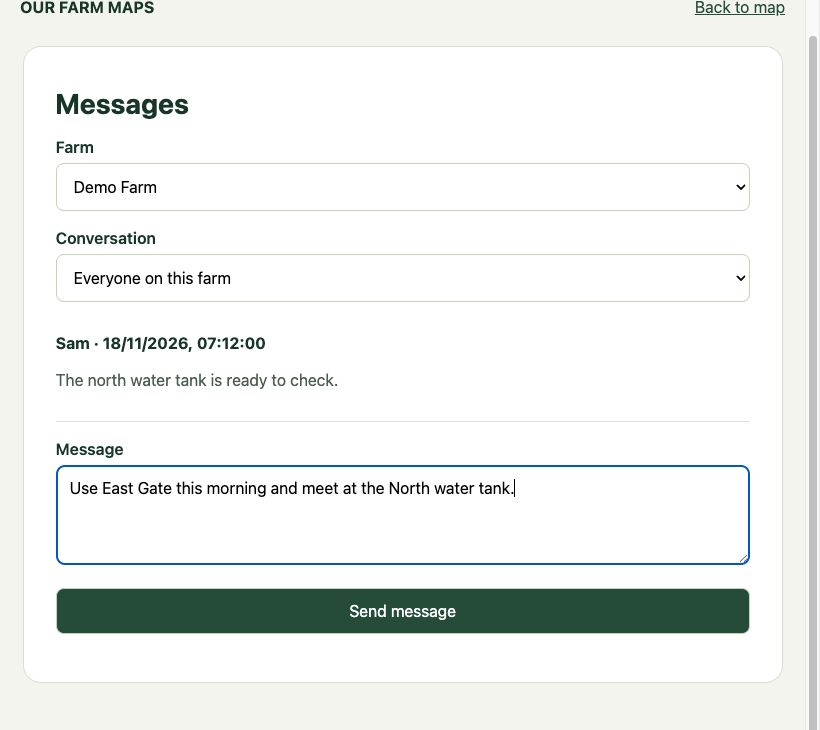
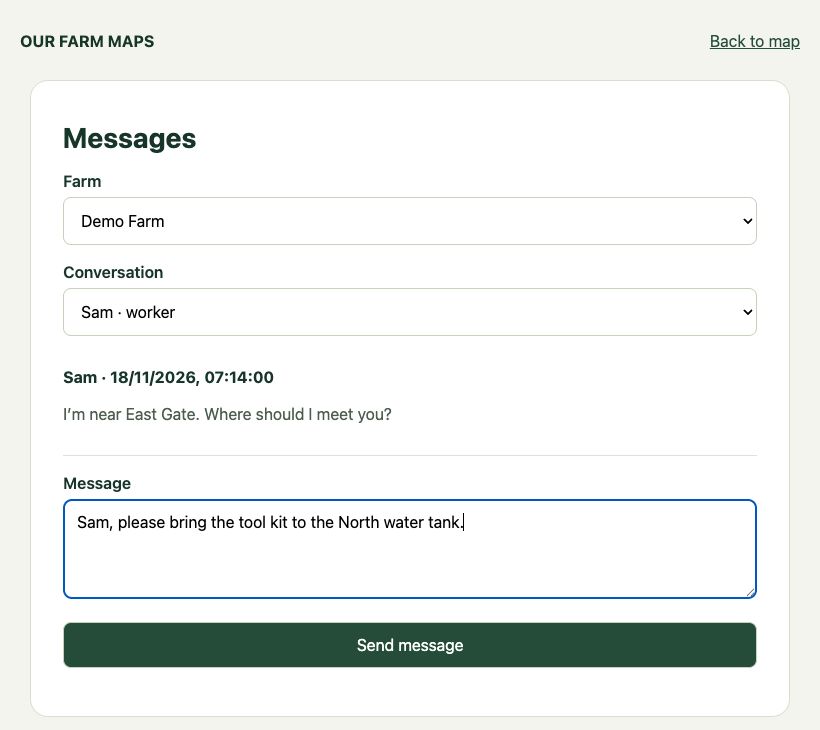
Send updates in Messages
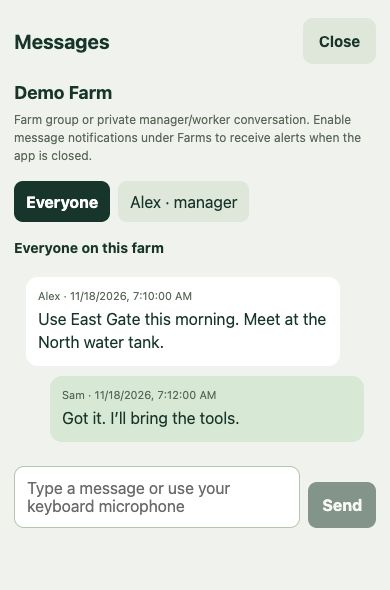
Message the whole farm group when a job changes, or use a private manager–worker conversation for a follow-up. Use the same place names as the map so workers can find the destination in Go to.
“Use East Gate this morning and meet at the North water tank.”
See a worker’s current location when they share it
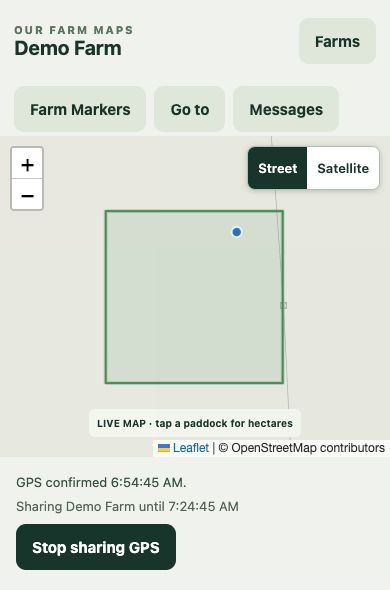
When a worker taps Share GPS, their current position appears on the shared farm map. That helps you direct someone to meet them or explain which gate or track is nearby.
Workers choose when to share. Sharing lasts up to 30 minutes, and they can stop it at any time.
How a manager sends a message
Open Messages from the farm map. Choose the farm, then select Everyone on this farm or a worker’s name under Conversation. Write your message and select Send message.
What the manager sees on the farm map
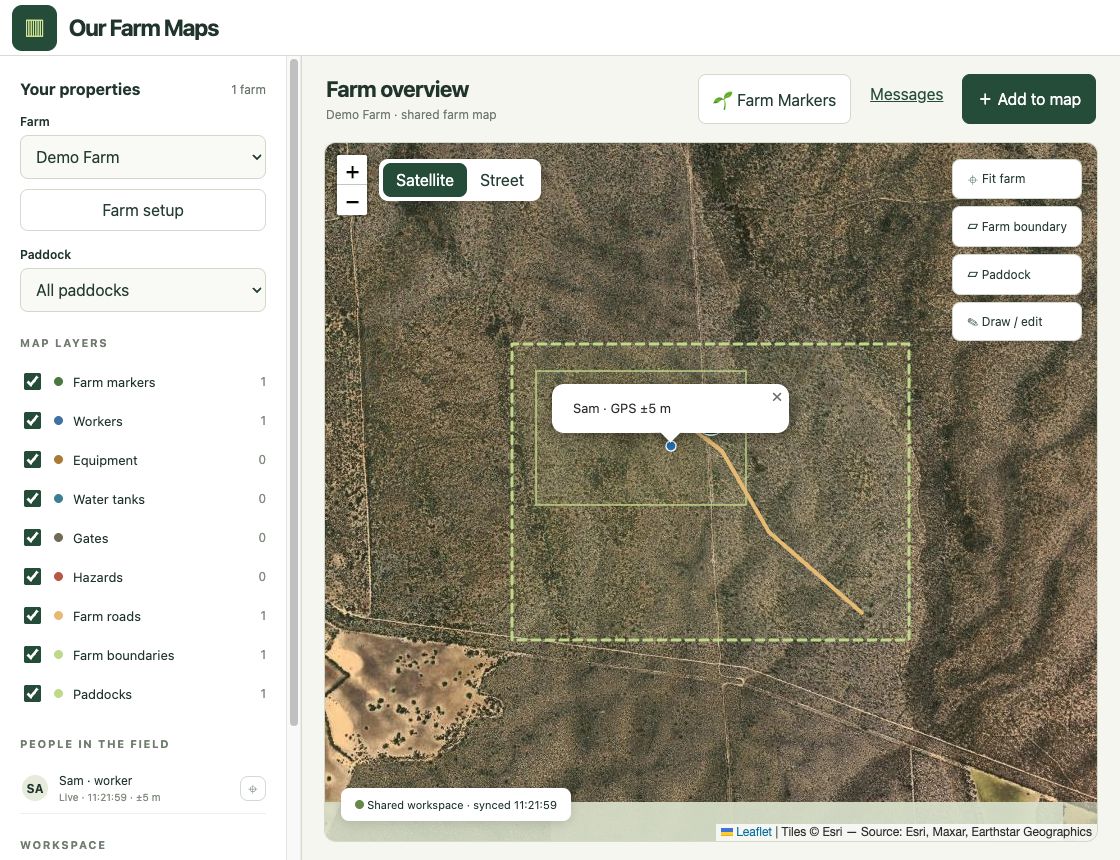
Sam’s shared location appears as a blue dot. Selecting it shows Sam’s name and estimated GPS accuracy. The People in the field list also shows when the location was updated.